> ## Documentation Index
> Fetch the complete documentation index at: https://docs.alpic.ai/llms.txt
> Use this file to discover all available pages before exploring further.
# Playground
> How to access and test your MCP Server
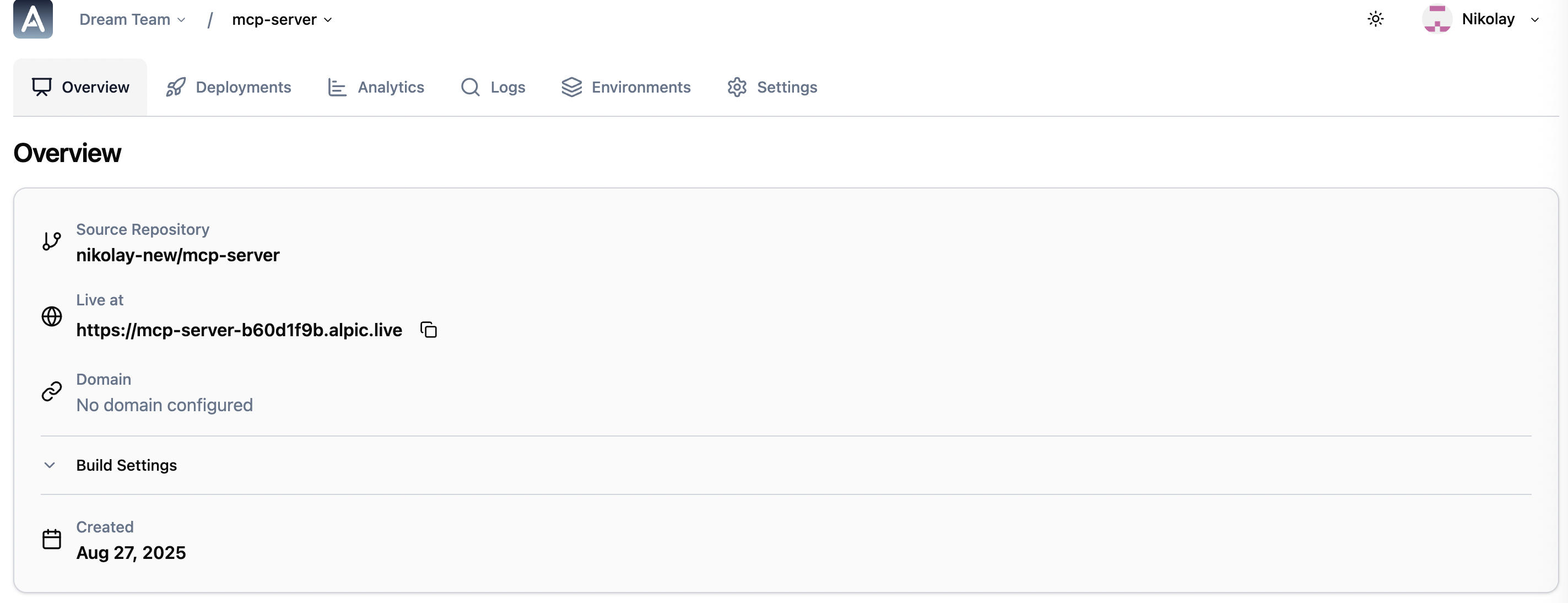
Once your deployment on Alpic is successful, you get a remote URL to connect to your MCP server.
 ### Try it instantly with the Playground
Every server deployed on Alpic comes with a built-in [Playground](/distribution/playground) at the `/try` path of your server URL. It lets you and your users test tools through a conversational AI interface directly in the browser — no client setup required.
### Test and debug your MCP server with the MCP Inspector
While in development mode, you can use the [MCP Inspector](https://github.com/modelcontextprotocol/inspector) to test and debug your MCP server:
1. Launch the [MCP Inspector](https://github.com/modelcontextprotocol/inspector)
```bash theme={null}
npx @modelcontextprotocol/inspector
```
2. Select **Streamable HTTP** transport.
3. Add your MCP server URL (e.g. `https://mcp-server-XXXXXXX.alpic.live`).
4. Click **Connect**.
The status should change to **Connected**, and you should be able to access all of your ressources, prompts and tools to test them via the inspector UI.
The MCP Inspector is particularly useful for debugging authentication issues, testing tool parameters, and verifying
that your server responds correctly to different requests.
### Connect your MCP server to any compatible MCP client
You can also connect your MCP server to any MCP client supporting SSE or Streamable HTTP transport. Below are some configuration examples:
```json mcp.json theme={null}
{
"mcpServers": {
"your-server-name": {
"url": "https://mcp-server-XXXXXXX.alpic.live",
"transport": "http"
}
}
}
```
```json mcp.json (with Auth Bearer Token) theme={null}
{
"mcpServers": {
"your-server-name": {
"url": "https://mcp-server-XXXXXXX.alpic.live",
"transport": "http",
"headers": {
"X-API-KEY": "your-api-key-here"
}
}
}
}
```
Replace `https://mcp-server-XXXXXXX.alpic.live` with your actual MCP server URL.
### Try it instantly with the Playground
Every server deployed on Alpic comes with a built-in [Playground](/distribution/playground) at the `/try` path of your server URL. It lets you and your users test tools through a conversational AI interface directly in the browser — no client setup required.
### Test and debug your MCP server with the MCP Inspector
While in development mode, you can use the [MCP Inspector](https://github.com/modelcontextprotocol/inspector) to test and debug your MCP server:
1. Launch the [MCP Inspector](https://github.com/modelcontextprotocol/inspector)
```bash theme={null}
npx @modelcontextprotocol/inspector
```
2. Select **Streamable HTTP** transport.
3. Add your MCP server URL (e.g. `https://mcp-server-XXXXXXX.alpic.live`).
4. Click **Connect**.
The status should change to **Connected**, and you should be able to access all of your ressources, prompts and tools to test them via the inspector UI.
The MCP Inspector is particularly useful for debugging authentication issues, testing tool parameters, and verifying
that your server responds correctly to different requests.
### Connect your MCP server to any compatible MCP client
You can also connect your MCP server to any MCP client supporting SSE or Streamable HTTP transport. Below are some configuration examples:
```json mcp.json theme={null}
{
"mcpServers": {
"your-server-name": {
"url": "https://mcp-server-XXXXXXX.alpic.live",
"transport": "http"
}
}
}
```
```json mcp.json (with Auth Bearer Token) theme={null}
{
"mcpServers": {
"your-server-name": {
"url": "https://mcp-server-XXXXXXX.alpic.live",
"transport": "http",
"headers": {
"X-API-KEY": "your-api-key-here"
}
}
}
}
```
Replace `https://mcp-server-XXXXXXX.alpic.live` with your actual MCP server URL.