Documentation Index
Fetch the complete documentation index at: https://docs.alpic.ai/llms.txt
Use this file to discover all available pages before exploring further.
Overview
The Alpic MCP Server is a hosted MCP server at mcp.alpic.ai that lets you interact with your Alpic account from any MCP-compatible client. You can browse teams and projects, inspect deployment logs, and review analytics.
| Tool | Description |
|---|
list-teams | List all teams you belong to. |
list-projects | List all projects for a given team. |
deployment-logs | Fetch deployment logs for a specific project and environment. |
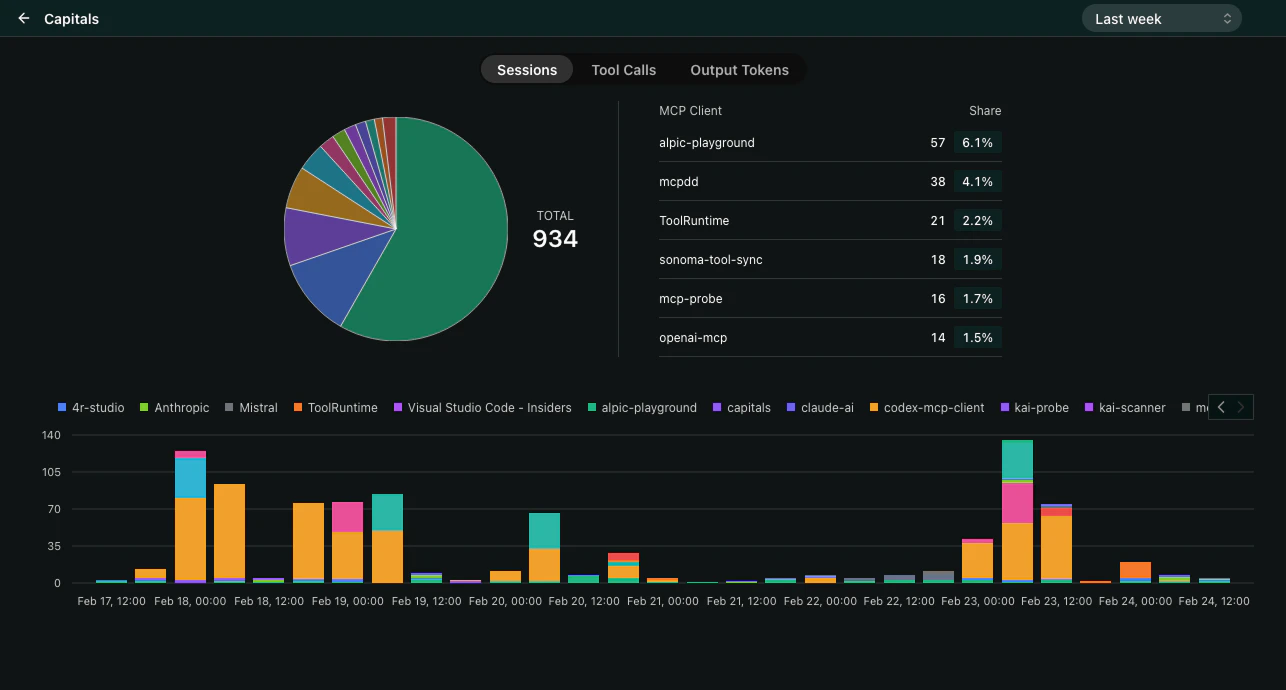
get-analytics | Retrieve analytics data (sessions, requests, errors) for a project. |
The list-projects tool returns a widget that displays your projects as interactive cards. Each card shows the project name, environment status, and key analytics at a glance. The widget supports both inline and fullscreen display modes so you can quickly scan your projects or dive deeper into a specific one.
Connect Your MCP Client
Claude Code
Claude Desktop
VS Code
Cursor
Add the MCP server
Run the following command to add the Alpic MCP server:claude mcp add alpic --transport http https://mcp.alpic.ai/
Authenticate
In your Claude Code session, run /mcp and select the Alpic server. This will open your browser to authenticate with your Alpic account.
Start using
Once authenticated, Claude Code can use the Alpic tools directly. Try asking it to list your teams.
Add the MCP server
Add the following to your claude_desktop_config.json:{
"mcpServers": {
"alpic": {
"command": "npx",
"args": ["-y", "mcp-remote", "https://mcp.alpic.ai/"]
}
}
}
On macOS, the config file is located at ~/Library/Application Support/Claude/claude_desktop_config.json.
On Windows, it is at %APPDATA%\Claude\claude_desktop_config.json.
Authenticate
When opening Claude Desktop, a browser page will open to authenticate with your Alpic account.
Start using
Open a new conversation and ask Claude about your Alpic projects.
Add the MCP server
Or manually add the following to your .vscode/mcp.json at the root of your workspace:{
"servers": {
"alpic": {
"url": "https://mcp.alpic.ai/",
"type": "http"
}
}
}
You can also configure MCP servers globally instead of per-workspace.
On macOS, the global config is at ~/Library/Application Support/Code/User/mcp.json.
On Windows, it is at %APPDATA%\Code\User\mcp.json.
Authenticate
When opening VS Code, a browser page will open to authenticate with your Alpic account.
Start using
Open a new conversation and ask Copilot about your Alpic projects.
Add the MCP server
Or manually add the following to your ~/.cursor/mcp.json:{
"mcpServers": {
"alpic": {
"url": "https://mcp.alpic.ai/",
"type": "http"
}
}
}
Connect the server
Go to Cursor Settings → Tools and MCP and hit Connect on the Alpic server. This will open your browser to authenticate with your Alpic account.
Start using
Open a new chat and ask Cursor about your Alpic projects.
Clients supporting MCP Apps
Our MCP Server is using the MCP Apps extension that allows rendering of rich UI interfaces through custom Views. When used with MCP Apps compatible clients, it provides interactive visual components alongside the standard tool responses.
Open ChatGPT settings
In ChatGPT, go to Settings → Apps.
Create a new app
Click Create and paste the following URL: Connect to Alpic
Select the OAuth authentication flow and leave the optional fields empty.Hit create and you will be prompted to connect using your Alpic account.
Start chatting
Open a new conversation and ask ChatGPT about your Alpic projects. It will use the connected tools automatically.
Add the Alpic connector
Click Add connector and paste the following URL: Connect to Alpic
Hit create and you will be prompted to connect using your Alpic account.
Start chatting
Open a new conversation and ask Claude about your Alpic projects. It will use the connected tools automatically.