

403 Forbidden response.
This is useful when you want to limit access to known clients, such as ChatGPT or Claude, or restrict usage to your corporate network.
Platform Selection
For common platforms, Alpic maintains up-to-date IP lists so you don’t have to manage them manually. Simply select the platforms you want to allow.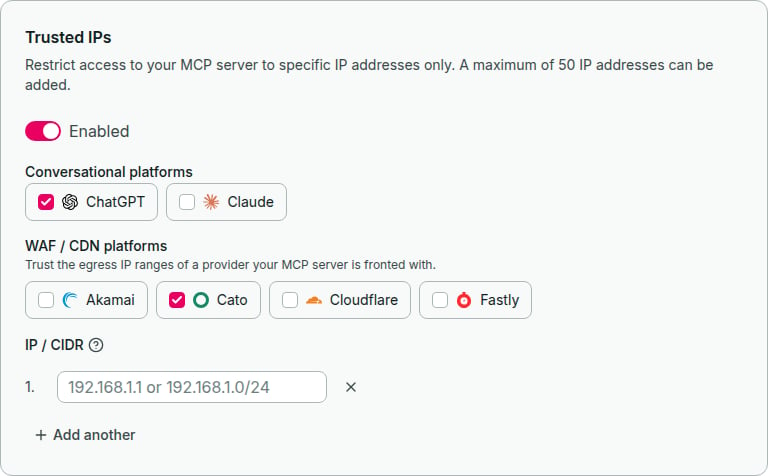
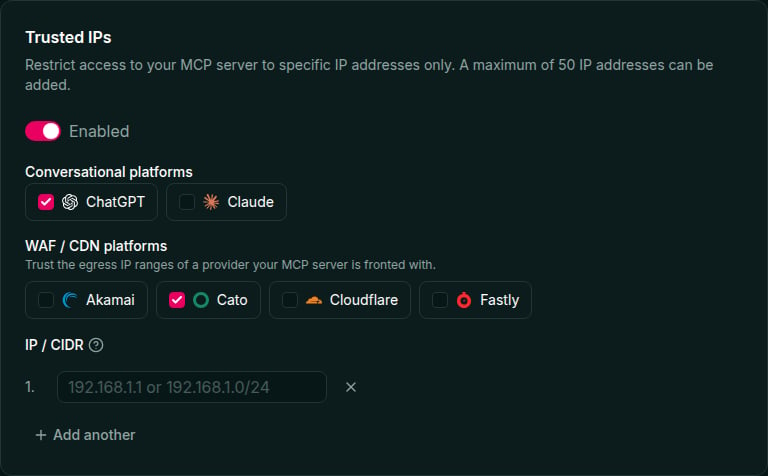
Conversational platforms
Select the MCP clients whose users reach your server directly:
ChatGPT IPs are fetched dynamically and remain up to date automatically. Claude IPs are updated with Alpic releases, so if Anthropic changes their egress IP ranges, there may be a short delay before the changes are reflected.
WAF / CDN platforms
If your MCP server is fronted by a WAF or CDN, trust that provider’s egress IP ranges so requests forwarded through it aren’t blocked:
Cato publishes no machine-readable feed, so its PoP ranges — including the China PoPs — are updated with Alpic releases, meaning a newly published PoP range may take a short while to be reflected.
Custom IPs
You can also add up to 20 custom IP addresses or CIDR ranges per environment. Supported formats:- IPv4 addresses (e.g.,
203.0.113.10) - IPv6 addresses (e.g.,
2001:db8::1) - IPv4 CIDR ranges (e.g.,
203.0.113.0/24) - IPv6 CIDR ranges (e.g.,
2001:db8::/32)
Setup
1
Navigate to Distribution
In your Alpic dashboard, open your project and go to the Distribution tab, then select the Trusted IPs section.
2
Enable IP whitelisting
Toggle the IP whitelist switch to enable the feature.
3
Select MCP clients and/or add custom IPs
Check the platforms you want to allow — conversational clients (ChatGPT, Claude) and/or WAF/CDN providers (Akamai,
Cato, Cloudflare, Fastly) — and optionally add custom IP addresses or CIDR ranges.
4
Save
Click Save to apply the changes. The restrictions take effect immediately for new requests.
IPv4-mapped IPv6 addresses (e.g.,
::ffff:192.168.1.1) are automatically normalized, so you only need to add the IPv4
form.