

Activating Custom CNAMEs
To activate a custom CNAME for your MCP server environment, follow these steps:1
Navigate to Settings
In your Alpic dashboard, go to your Project Settings tab.
2
Go to Domains section
In the Settings page, navigate to the Domains section. You will see the list of domains you have added for your
project. Click on Add to add a new domain.
3
Add the domain name you want to use for your environment
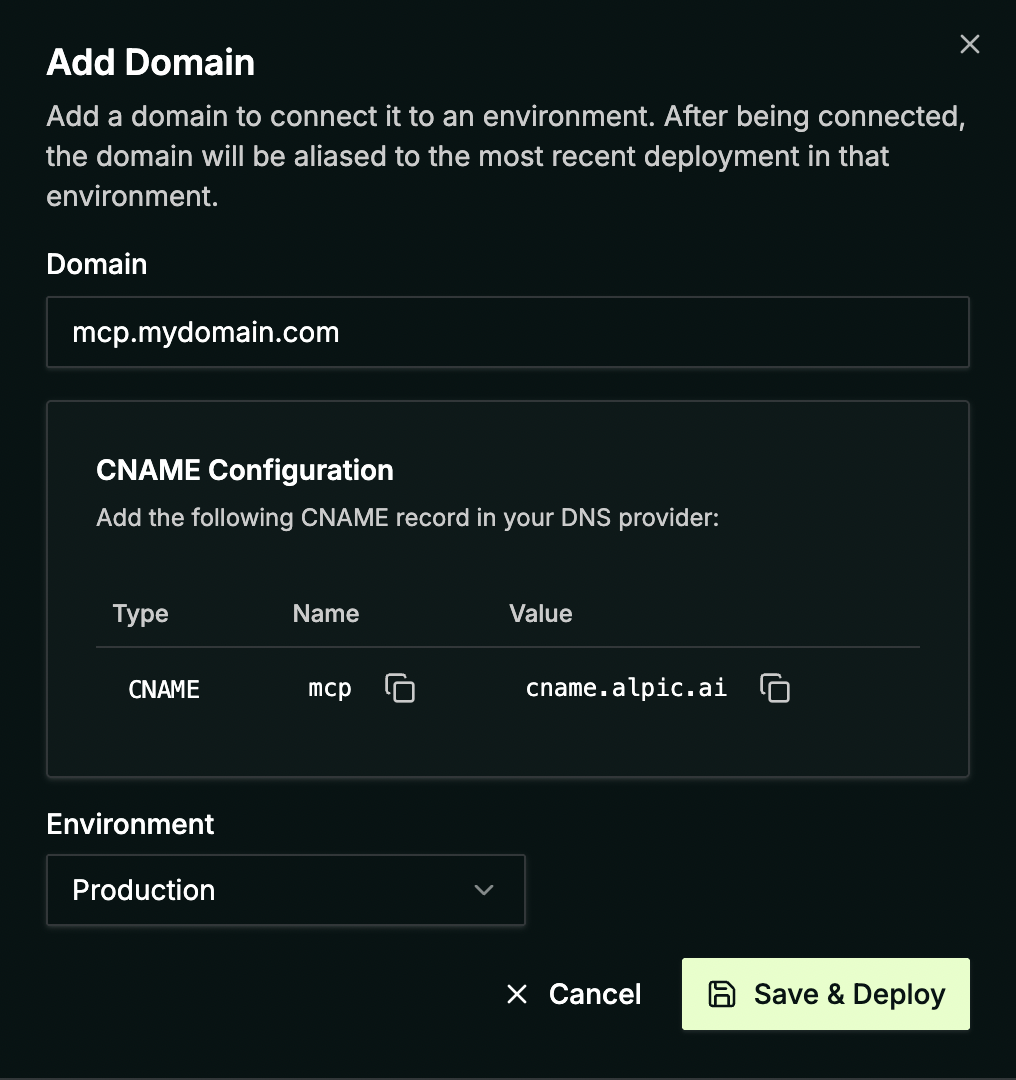
Enter your custom domain name and select the environment you want to configure. The CNAME records you need to add to your DNS provider will be displayed in the modal.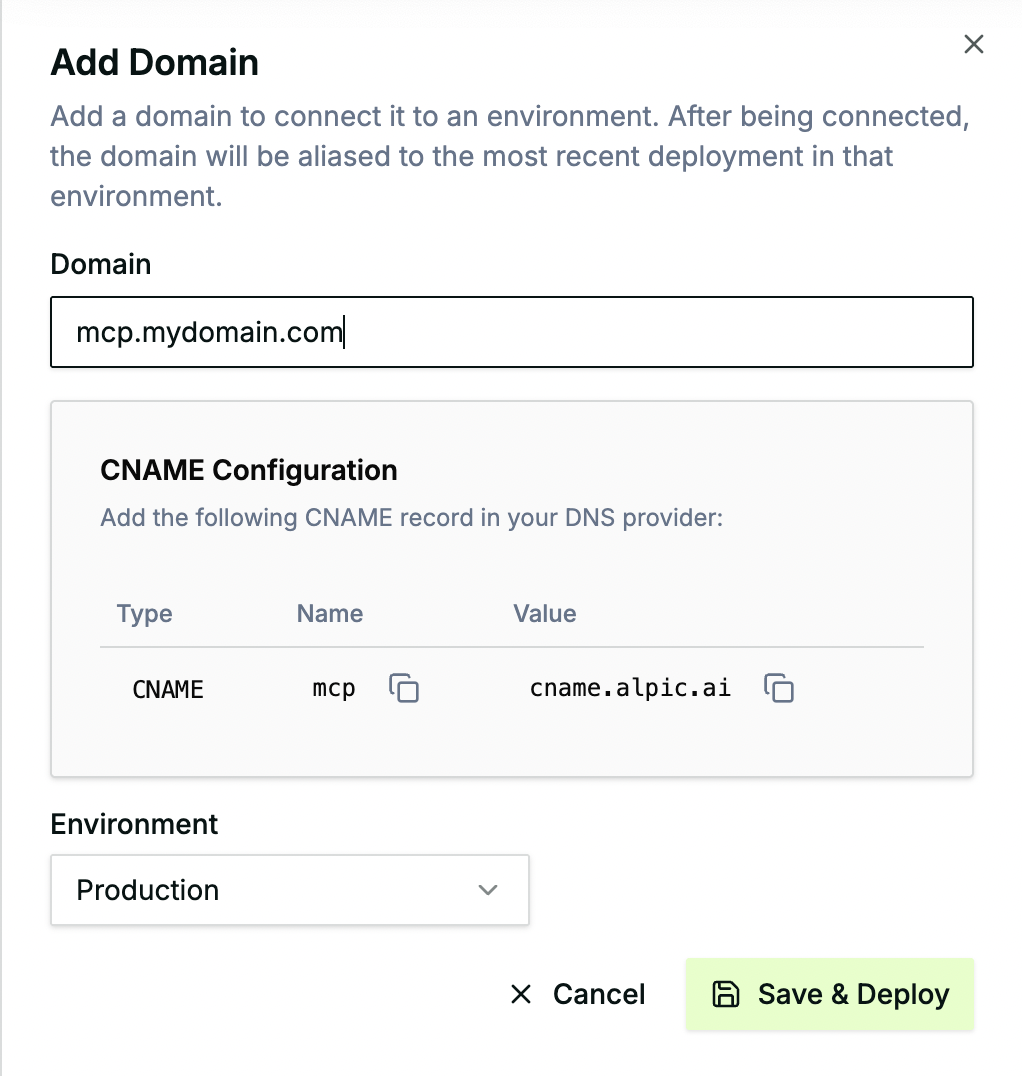
4
Configure DNS
Before validating the new domain name in Alpic, configure your DNS provider to point your domain to the Alpic endpoint
as shown above.
5
Validate the domain name addition
Once you have added the DNS records required to link the domain name to Alpic, you can validate it by clicking on Save & Deploy.


Currently, we don’t support root domains (e.g., example.com) or wildcard domains (e.g., *.example.com).
Routing multiple environments on one domain
A single custom domain can serve multiple environments of the same project at once, each mounted under its own path prefix. This lets you advertise multiple versions of your server side by side on the same domain. It’s very handy if you deploy tenant-specific versions of your server (configured by environment variables) or want to version your app for hosts that implement metadata caching (like ChatGPT and Claude). The mapping is flexible: the same environment can be served under several path prefixes if you want to expose it on more than one route.Editing a domain’s environment mappings
1
Open the domain editor
In your Project Settings → Domains section, click the edit (pencil) button next to the domain you want to configure.
2
Map environments to path prefixes
Each row maps one environment to one path prefix. Leave the path prefix empty to serve that environment on the root path, or enter a prefix such as 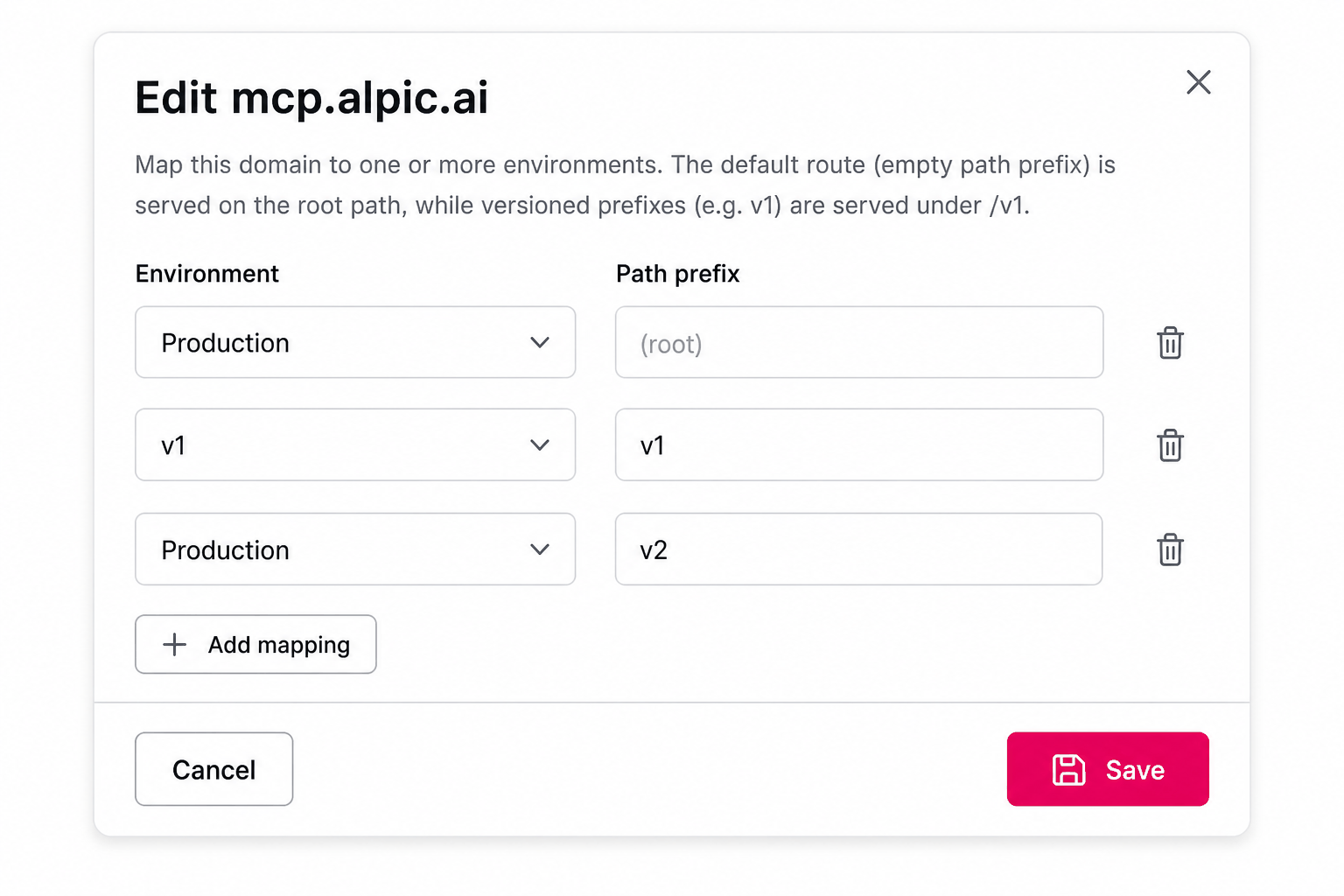
v1 to serve it under /v1.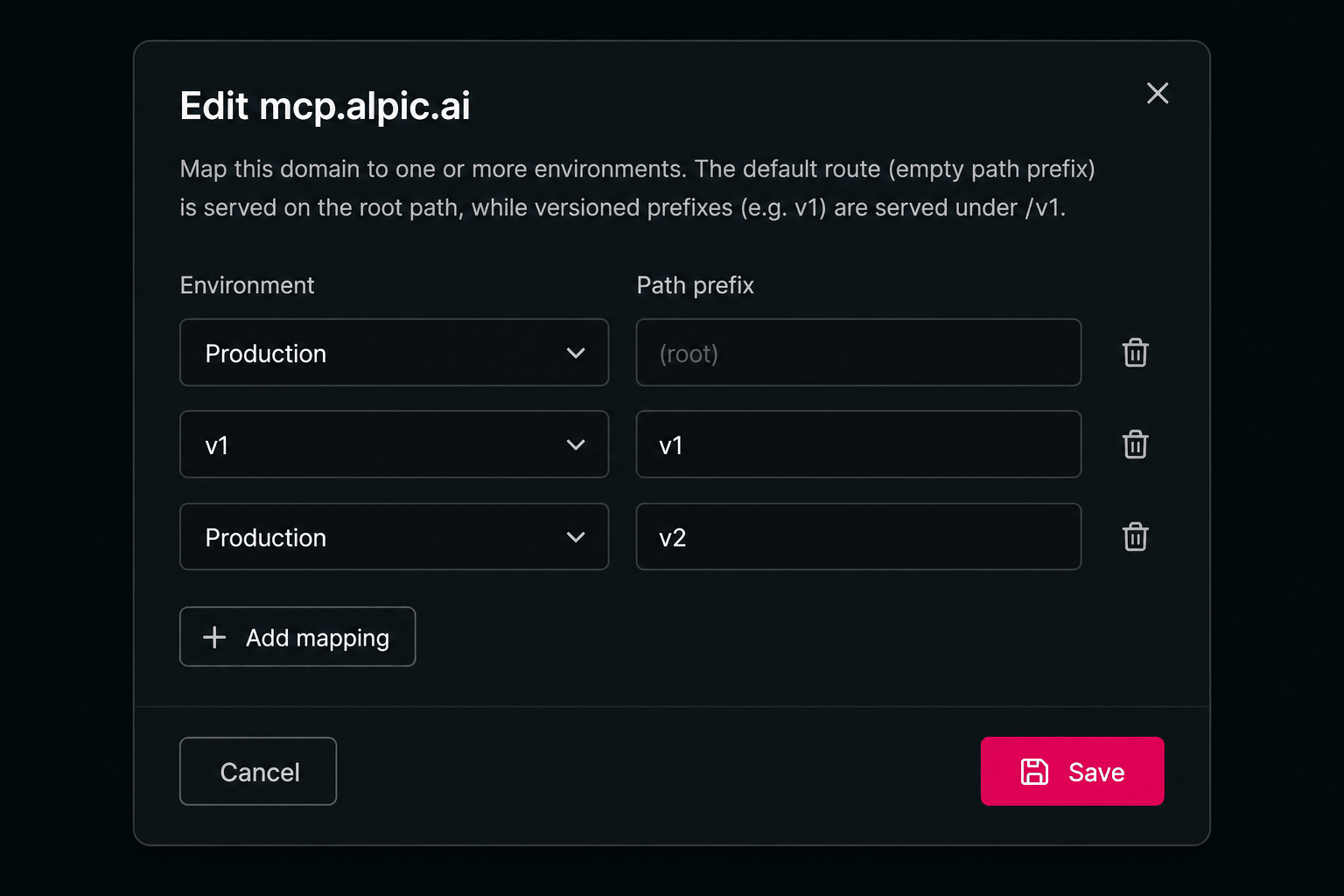
3
Add or remove mappings
Use Add mapping to route another environment under a new prefix, or the trash icon to remove a mapping. A domain
must keep at least one mapping.
4
Save
Click Save to apply your changes. Updates are live immediately and may take up to a minute to propagate.
Path prefix rules: each prefix must be unique within the domain and be a single URL-safe path segment (letters,
numbers and
-._~, no slashes, up to 63 characters). The prefixes mcp, oauth2, .well-known, assets, try and
health-check are reserved, because they collide with the routes served on the root path.