

The helper is not a submission service. It does not submit for you, and it does not guarantee approval. It only
produces the assets you need to submit.
The two stores
Before you start
- The environment you submit must have at least one successful deployment. The helper reads your live server to pre-fill the form and to collect its tool list. With nothing deployed, you won’t be able to launch the helper.
- You need the URLs the stores require: privacy policy, terms of service, company website, and a support channel.
The Submission Helper does not yet support OAuth-protected MCP servers. If your server requires authentication,
the pre-fill step cannot connect to it and the submission will come back empty. Support is on the roadmap.
Preparing a submission
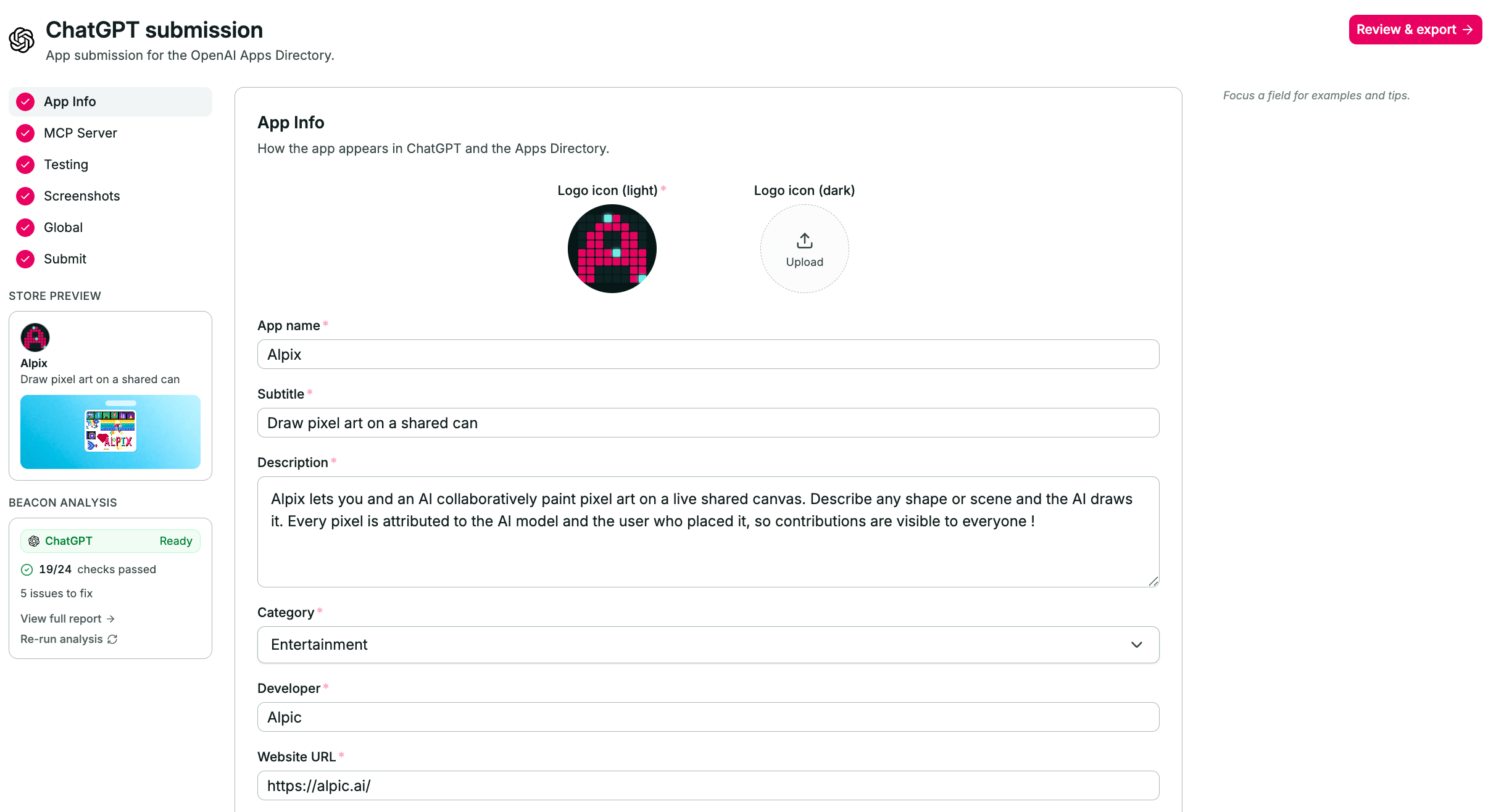
Submission Helper in the Alpic dashboard - ChatGPT submission
1
Open the Submissions tab
Go to your project and open Submissions, then click Submit my plugin.
2
Pick a store and an environment
Choose ChatGPT or Claude, and the environment to submit. Each store has its own form and its own requirements, so a
submission always targets exactly one store.
3
Let the pre-fill run
Alpic connects to the deployed server, reads its manifest and tools, and fills the form from your project data. It
also drafts the narrative fields : description, subtitle, test cases.Treat every drafted field as a first draft: read it, correct it, and make it yours. Reviewers reject vague or
inaccurate listings, and generated copy is where inaccuracy hides.
4
Work through the sections
The form is split into sections in the left-hand nav, with a completion count at the bottom. Drafts auto-save as you
type, so you can leave and come back.ChatGPT : Info, MCP, Skills, Testing, Screenshots, Global, Submit.Claude : Connection, Listing, Use cases, Company, Authentication, Data handling, Test & launch, Compliance.
5
Upload your assets
Logos and screenshots are uploaded from the form and hosted by Alpic, so you have real URLs to give the store.
6
Check readiness, then export
The submission shows Ready to export once every required field is filled and its Beacon checks pass. From there,
open the handoff for the store you picked.
Beacon runs automatically
Creating a submission also kicks off a Beacon audit of the environment you selected, and the result appears on the submission as Beacon analysis. You can re-run it after fixing something. Beacon checks your server against the same specifications and platform requirements the stores apply during review, so its errors are the ones most likely to get your plugin rejected.From the API and the CLI
The same package can be prepared without the dashboard. Uploading logos and screenshots, verifying policy URLs, and the store handoffs still happen there.From the CLI
alpic submission create runs the pre-fill and returns the populated package, alpic submission list finds the
packages of a project, alpic submission inspect reads one back, and alpic submission update writes fields into it:
From the API
Four endpoints cover the same flow. Their full request and response shapes live in the API reference, under submissions.
Creation is synchronous and reads your live server, so expect it to take a few seconds. The environment must have a
successful deployment and must not require authentication.
"" or [] to clear one.
Unknown field names are rejected rather than ignored, so a typo fails the call instead of quietly writing nothing, and
platform must match the package’s own platform.
Submitting to ChatGPT
Submissions go through platform.openai.com/plugins. The ChatGPT handoff gives you two things:- A generated submission file. Download it and drop it into the upload box at the top of the Info step of OpenAI’s submission flow. It carries most of your listing.
- The remaining fields. Anything the file can’t carry is listed with a copy button, ready to paste field by field.