

Documentation Index
Fetch the complete documentation index at: https://docs.alpic.ai/llms.txt
Use this file to discover all available pages before exploring further.
Overview
MCP apps and servers can see tool calls and their parameters, but not the user prompts that triggered them. User Insights offer an easy way to gather these user prompts, to analyze, categorise and export them while making sure they are stripped of any Personally Identifiable Information.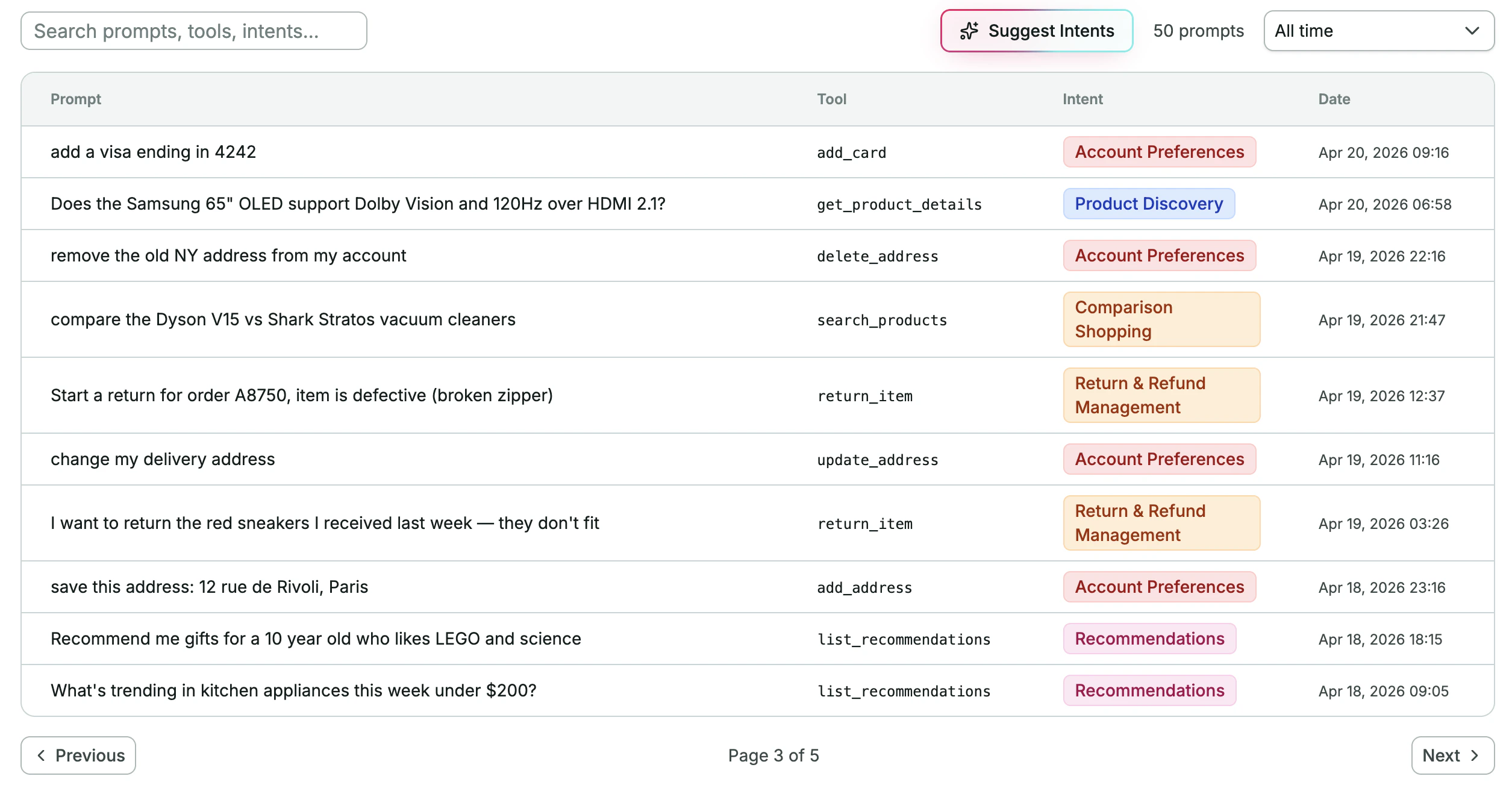
@alpic-ai/insights package dynamically adds an extra parameter to all
your tools so the LLM can include the user prompt. Alpic then collects and stores those prompts for you to explore.
1. Install the package
2. Wire it into your server
The package ships two entry points depending on which server framework you’re using.- Skybridge
- MCP SDK
Use
userPromptMiddleware — it returns a Skybridge McpMiddlewareFn you register via mcpMiddleware(). Add it
before your tool/widget registrations:3. Deploy
Deploy your application on Alpic as usual. As soon as the new version is live on the production environment, prompts start flowing in.4. View prompts in the dashboard
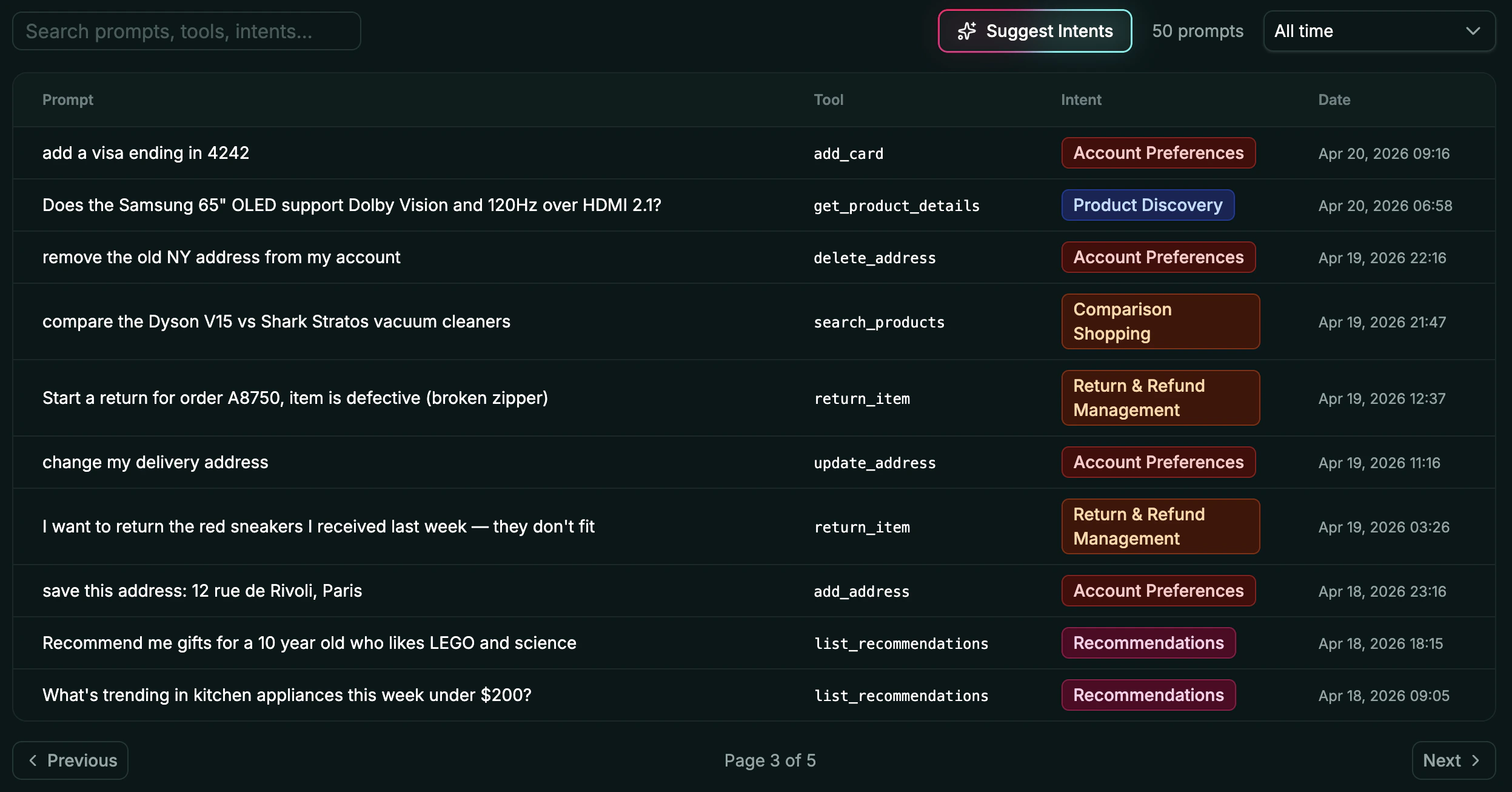
In the Alpic dashboard, open your project and click the Insights tab. You’ll see a paginated table with four columns:- Prompt: the user’s natural-language message, copied by the LLM
- Tool: which tool was called
- Intent: automatically categorized into a reusable label, editable in the table
- Date: when the call happened
5. Spot trends and signals
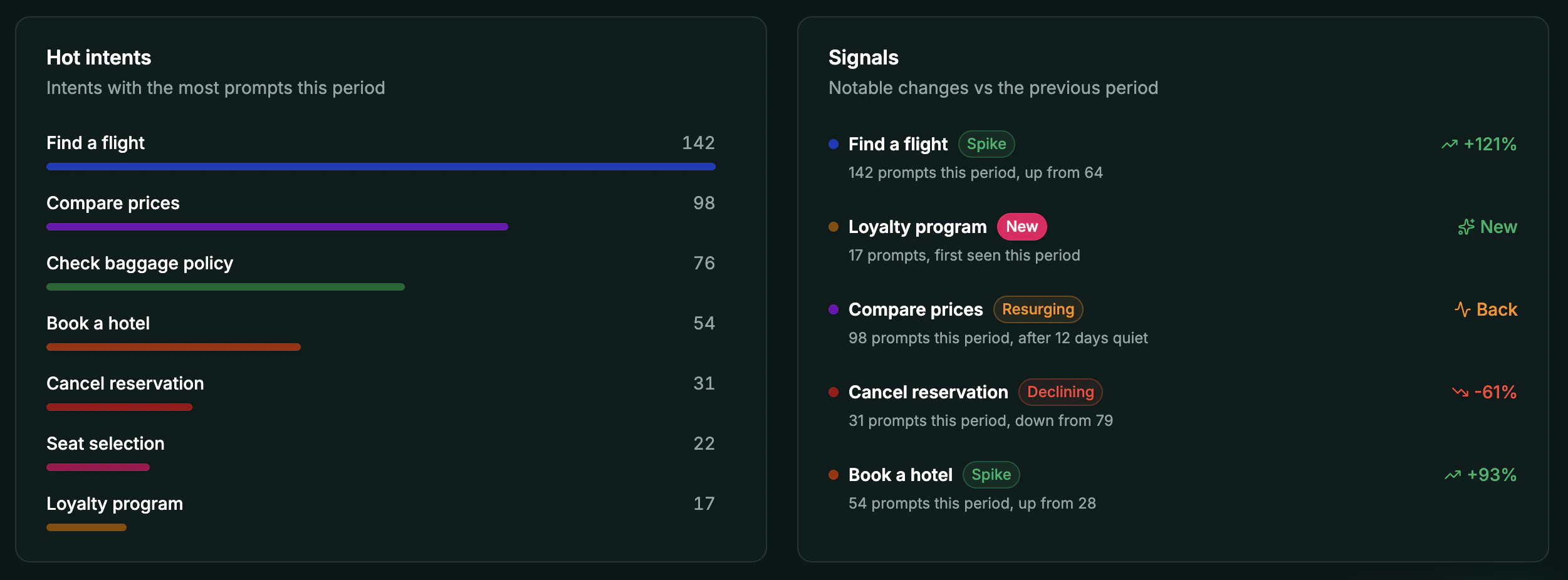
Hot Intent & Signals offer you high level User Insights for the selected period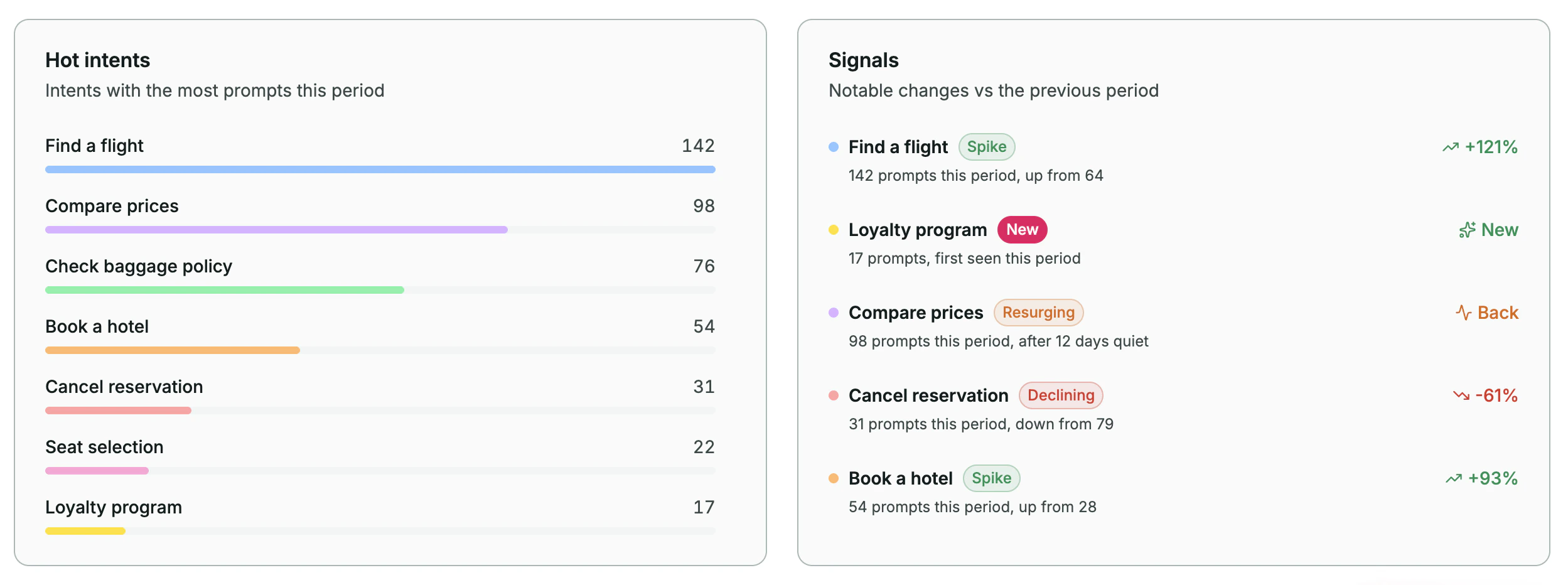
Optional: route prompts to your own handler instead of Alpic
If you’d rather handle prompts yourself, for example sending them to your own analytics pipeline, pass ahandler.
This replaces the Alpic dashboard delivery: prompts go to your handler only and do not reach the Alpic
User Intent page. The handler runs inside your MCP server process:
- Skybridge
- MCP SDK
Optional: capture from an existing tool field
If your tool already has a parameter that conveys user intent (for example, a query, rationale, or question parameter on a search tool), you can capture its value instead of asking the LLM to copy the prompt into a syntheticuser_prompt field.
Use the promptArgByTool option, a mapping of tool names to the input field whose value should be captured
instead of injecting a synthetic user_prompt field into your tool schema.
- Skybridge
- MCP SDK