

Overview
When something doesn’t work as expected, neither users nor models have a way to tell you. User Feedback adds asend_feedback tool to your MCP server so both the model and the user can report issues and send you
feedback.
@alpic-ai/insights (TypeScript) and
alpic-ai-insights (Python SDK) packages inject the feedback tool into
your server’s tool list. Alpic stores the feedback for you to explore in the dashboard.
1. Install the package
- TypeScript
- Python SDK
bash pnpm add @alpic-ai/insights 2. Wire it into your server
Choose the entry point for your language and MCP framework.- TypeScript - Skybridge
- TypeScript - MCP SDK
- Python SDK — FastMCP
- Python SDK — low-level
Use
feedbackMiddleware, it returns a Skybridge McpMiddlewareFn you register via mcpMiddleware(). Add it
before your tool/widget registrations:FastMCP example above uses the class bundled with the official MCP Python SDK
(mcp.server.fastmcp.FastMCP), not the separate fastmcp package.
The middleware adds a send_feedback tool to your server at runtime. It is handled entirely by the middleware; you don’t need to register it yourself.
3. How the LLM uses it
The tool instructs the LLM to:- Use it only for feedback about your MCP server, not about other MCP servers.
- Call it autonomously when it detects a genuine issue (e.g. a tool that failed unexpectedly, an unhelpful response, a missing capability). No explicit user consent required.
- Strip any Personally Identifiable Information from the content before sending.
4. Deploy
Deploy on Alpic as usual. Once the new version is live on the production environment, feedback starts flowing in.5. View feedback in the dashboard
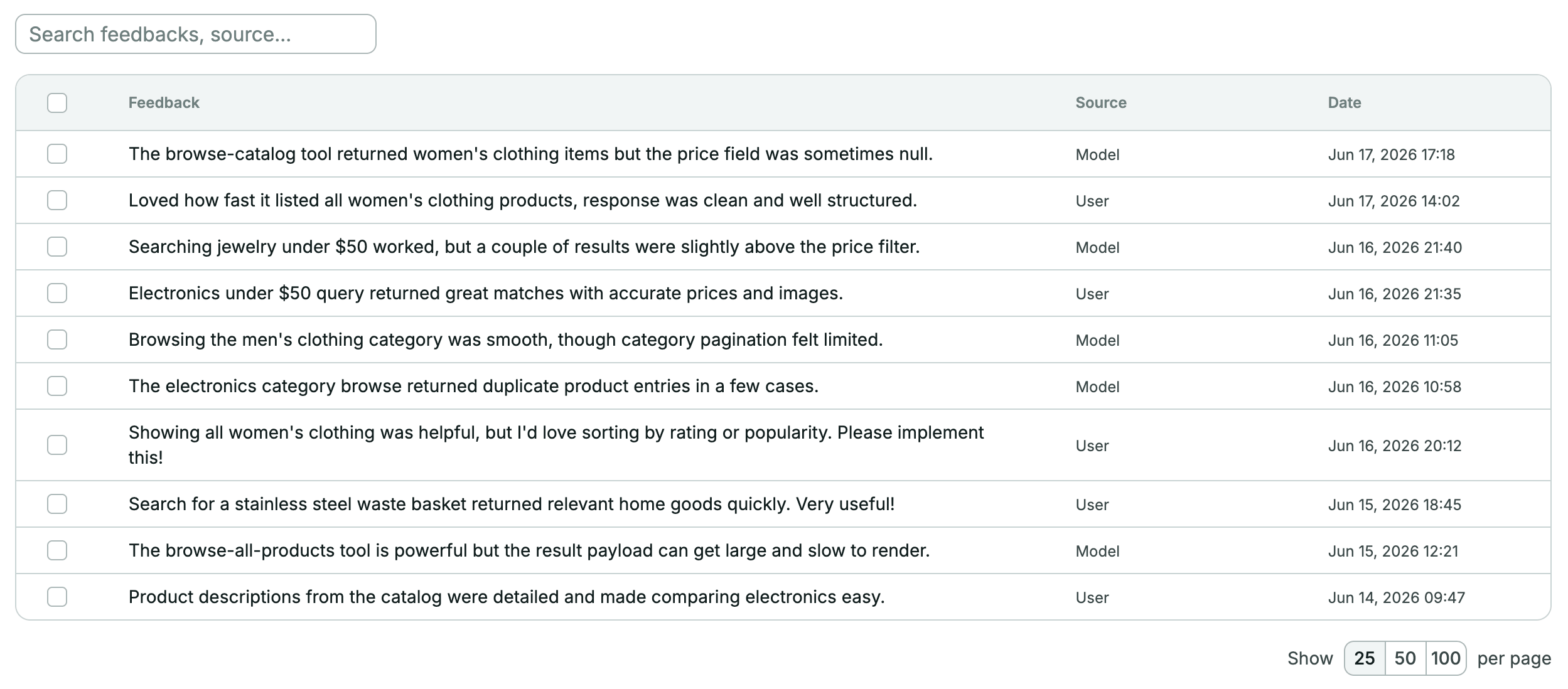
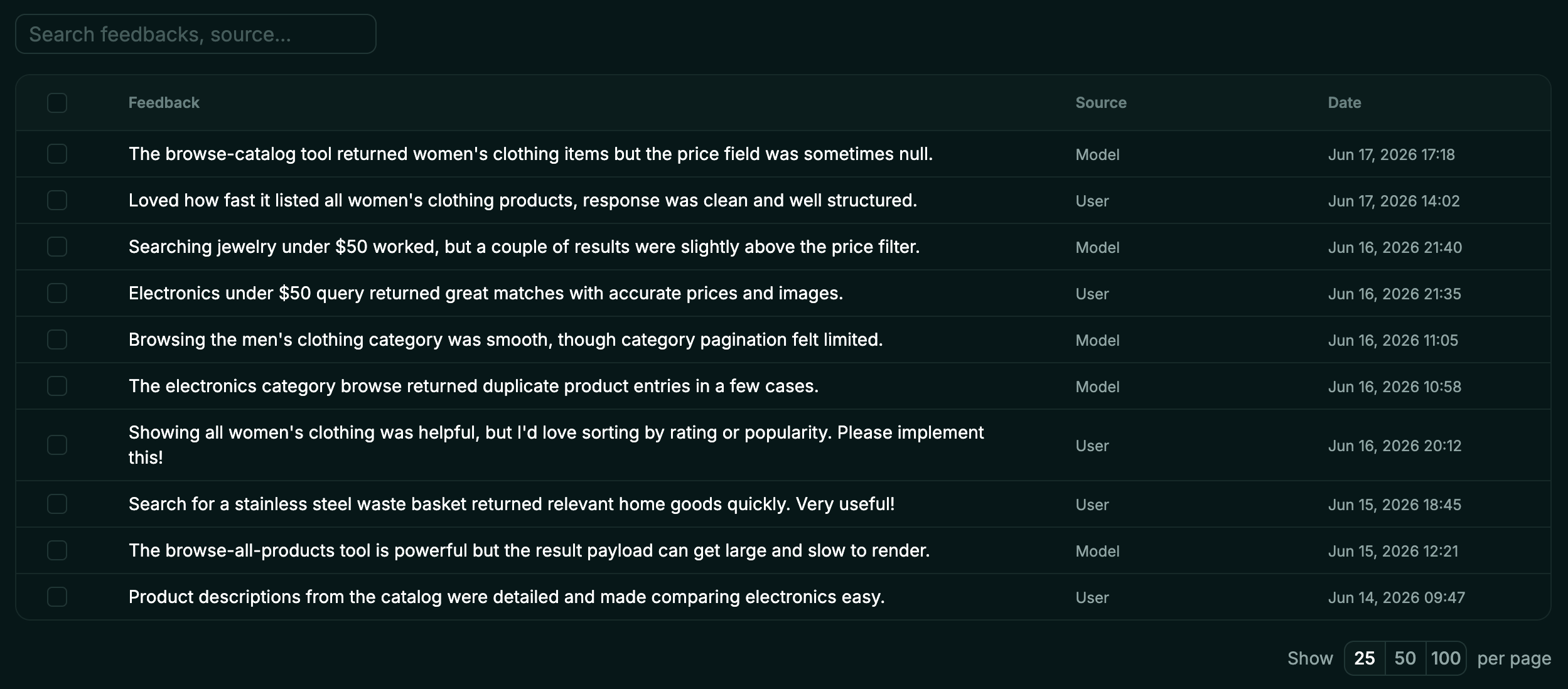
In the Alpic dashboard, open your project and click the Insights tab, then Feedbacks. Each entry shows:- Content: what the feedback says
- Source: whether it was sent by the user or the model autonomously
- Date: when it was submitted
Optional: run a custom handler alongside Alpic
Pass ahandler to run your own logic (e.g. forwarding to Slack or your own analytics) on every captured feedback.
The handler runs in addition to Alpic’s dashboard delivery (feedback still appears in the Feedbacks page) and executes inside your MCP server process:
- TypeScript — Skybridge
- TypeScript — MCP SDK
- Python SDK
Combining with User Intents
feedbackMiddleware/captureFeedback and intentMiddleware/captureIntents are independent and can be used together:
- TypeScript — Skybridge
- TypeScript — MCP SDK
- Python SDK
intentMiddleware/captureIntents and capture_intents automatically skip the send_feedback tool so they don’t
inject a user_intent field into the feedback tool’s schema.