

/try path of your server URL. It lets anyone try your server instantly with an AI agent, and provides all the information needed to connect it to their favorite AI client.
Use the Playground to quickly test your app in a production environment, share it with your team for testing and feedback, or showcase your MCP App to external users and guide them through the install process in their favorite AI client.
For example, if your server URL is https://my-server.alpic.live, the playground is available at https://my-server.alpic.live/try.
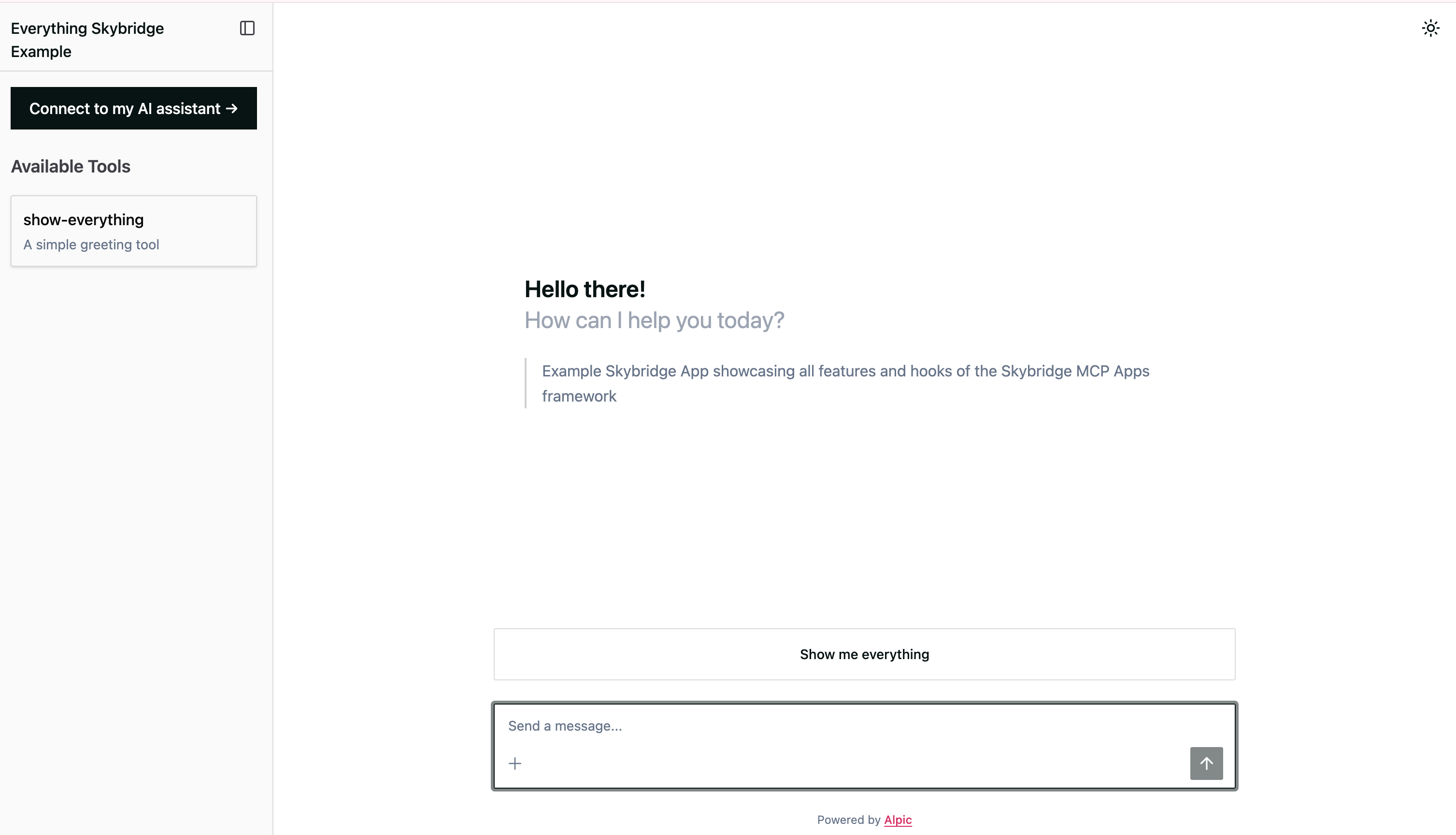
Try a live playground
Open the Everything App playground to see all features in action — MCP Apps, ChatGPT App widgets, tool execution, and
more.
What the Playground offers
The playground is a full-featured MCP client running in the browser. It includes:- AI-powered chat — Users can interact with your MCP server through a conversational interface powered by Claude Haiku.
- Tool execution — All your MCP tools are listed in the sidebar and can be called by the AI during the conversation.
- MCP App & ChatGPT App rendering — If your tools return MCP Apps or ChatGPT App widgets, they are rendered directly in the chat with support for inline, fullscreen, picture-in-picture, and modal display modes.
- Installation guide — A built-in modal shows step-by-step instructions to connect your server to 10 different AI clients. Each tab includes copyable code snippets with your server URL pre-filled, so users can get started in seconds.
Credits
Each team on Alpic receives $5 of free Claude Haiku credits to power playground conversations. Credits are shared across all projects within the team. When credits run out, playground users will see a message asking to contact support. Credits are tracked per team and deducted after each AI response.Configuring the Playground
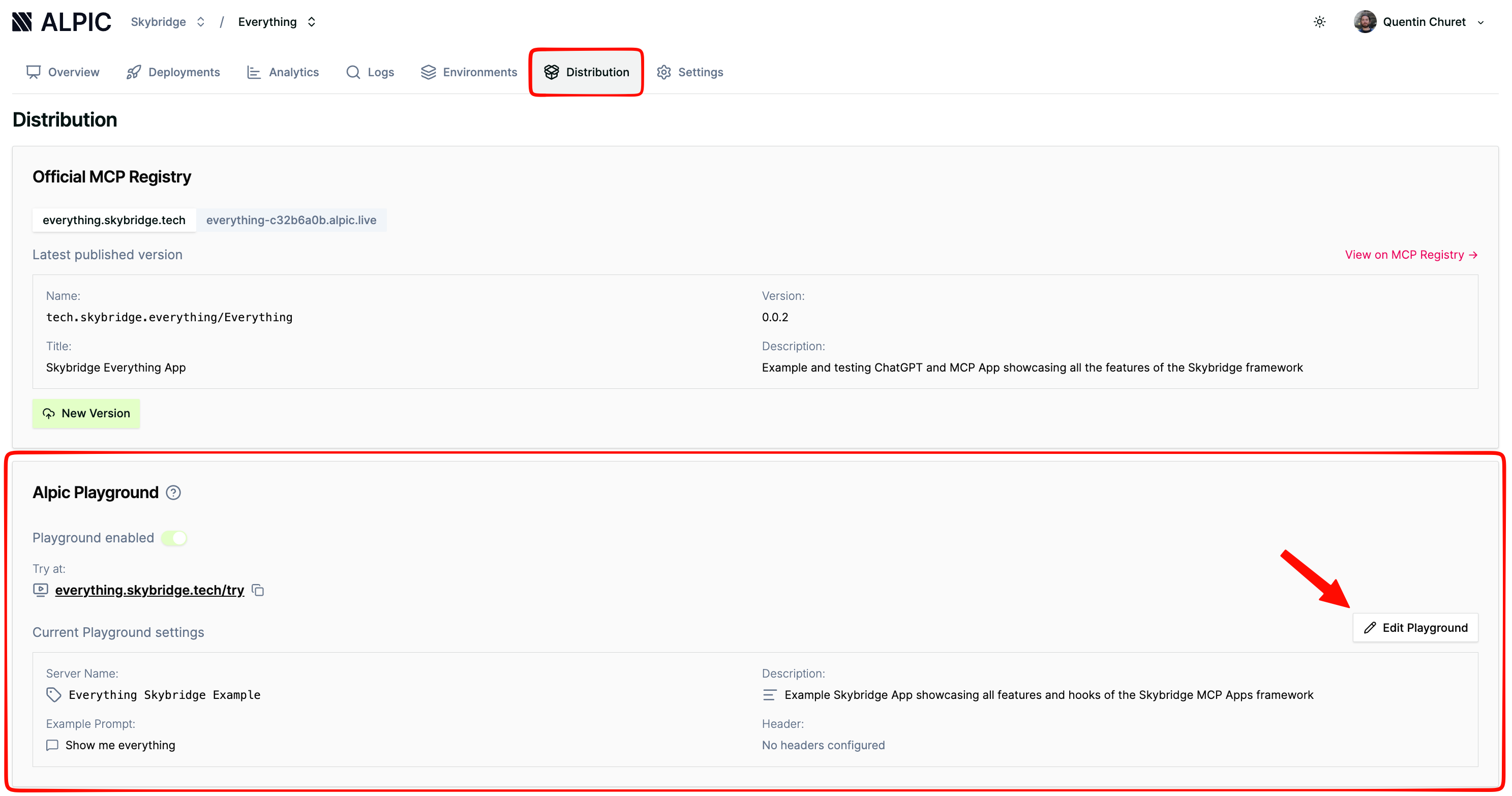
You can customize the playground experience from the Distribution > Alpic Playground section of your project in the Alpic dashboard.Enable or disable
The playground is enabled by default for all environments. You can toggle it off if you don’t want to expose the/try page.
Edit Playground settings
Click Edit Playground to configure:- Server name — Displayed in the playground header (1–100 characters).
- Server description — Shown on the welcome screen and provided to the AI as context so it understands what your server does (1–500 characters).
- Example prompts (up to 3) — Quick-start suggestions shown on the welcome screen. Each prompt has a title and a message that gets sent when clicked.
Custom headers
If your MCP server requires authentication or custom parameters, you can declare custom headers in the playground settings:- Required headers — Users must fill them in before they can send messages. A red indicator appears when required headers are missing.
- Secret headers — Displayed as password fields so sensitive values are not visible on screen.